Docker Volumes deep concept
Final-year BSc IT student and DevOps Engineer with strong hands-on experience in AWS and cloud-native technologies. I focus on building, deploying, and automating reliable systems using modern DevOps practices.
I have practical experience working with Docker and Kubernetes for containerization and orchestration, Terraform and Ansible for infrastructure automation, and CI/CD pipelines using Jenkins, GitHub Actions, and AWS CodePipeline. I enjoy solving real-world problems related to deployment, scalability, and system reliability.
🚀 Docker Advanced Practice: Deep Dive into Docker Volumes
In today's DevOps practice, I took a deep dive into Docker Volumes. This session focused on using volumes to create persistent storage for Docker containers, specifically for a MySQL database. Here’s a step-by-step breakdown of the process along with commands and images to illustrate each phase.
🏷️ Docker Volumes: Essential for Persistent Data Storage
What are Docker Volumes?
Docker Volumes enable data persistence by storing container data on the host machine. This becomes crucial when running databases like MySQL, where data loss on container deletion or restart would be a major setback.
1️⃣ Creating a Volume in a Directory
In this section, I created a Docker volume in a specified directory and configured MySQL to use it, ensuring that MySQL data persists outside the container lifecycle.
Step-by-Step Implementation
Setting Up a Directory
- Created a directory named
mysql-dataon the host and obtained its path usingpwd:
- Created a directory named
    mkdir mysql-data && cd mysql-data
    pwd
Running a MySQL Docker Container with Volume Mounting
- Pulled the MySQL image and ran it while mounting the
mysql-datadirectory:
- Pulled the MySQL image and ran it while mounting the
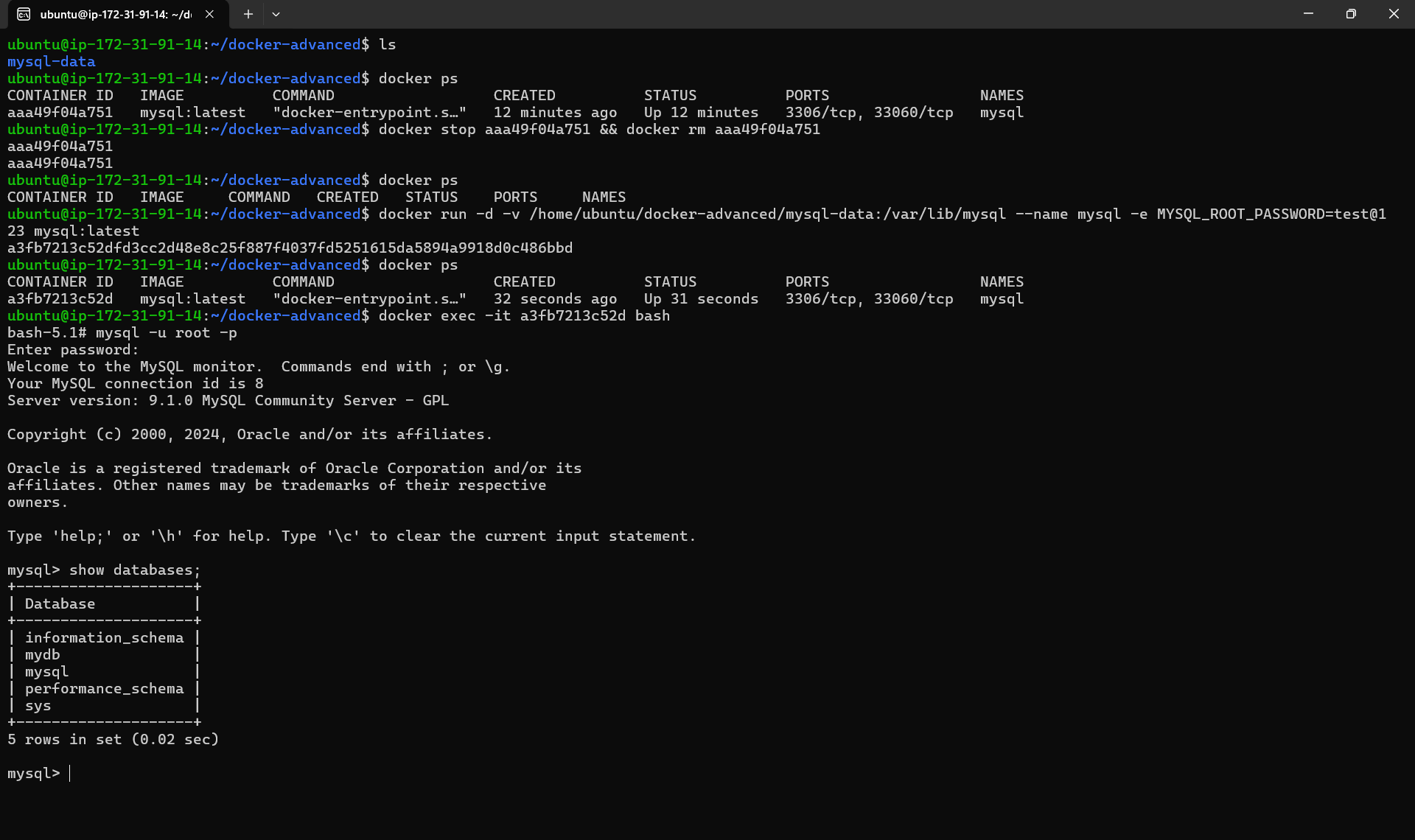
docker run -d -v /home/ubuntu/docker-advanced/mysql-data:/var/lib/mysql --name mysql -e MYSQL_ROOT_PASSWORD=test@123 mysql:latest
Note: MySQL requires the
MYSQL_ROOT_PASSWORDenvironment variable for authentication.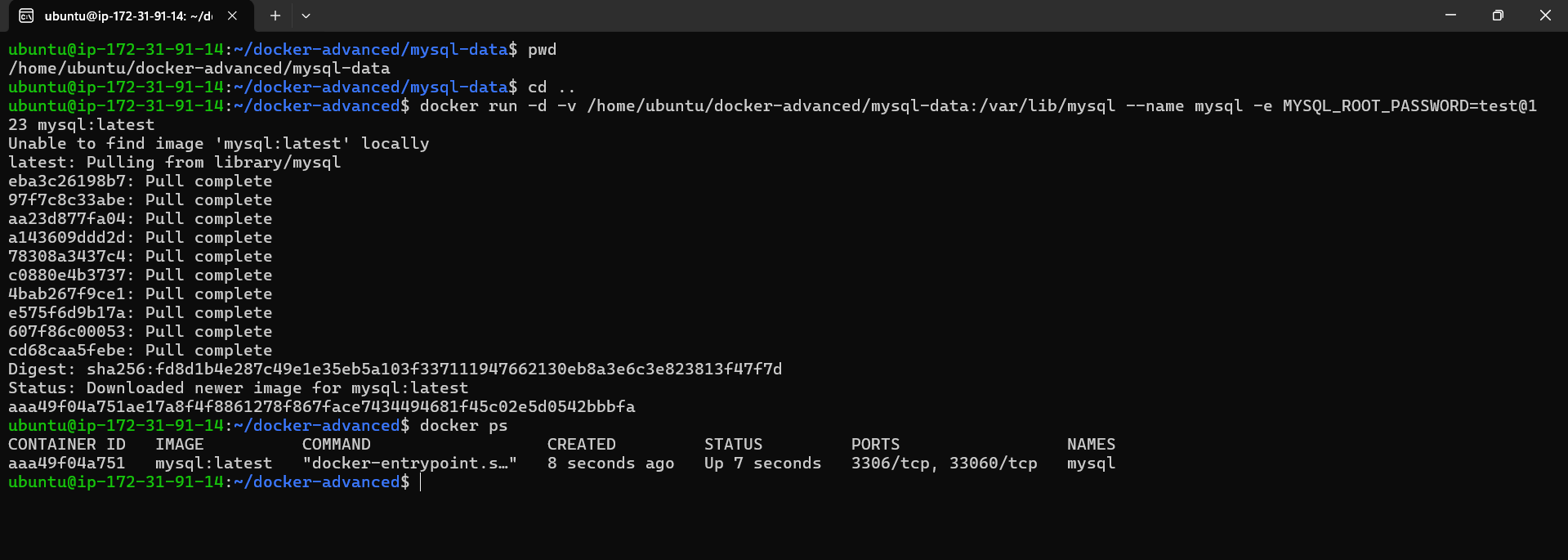
Verifying Container Creation
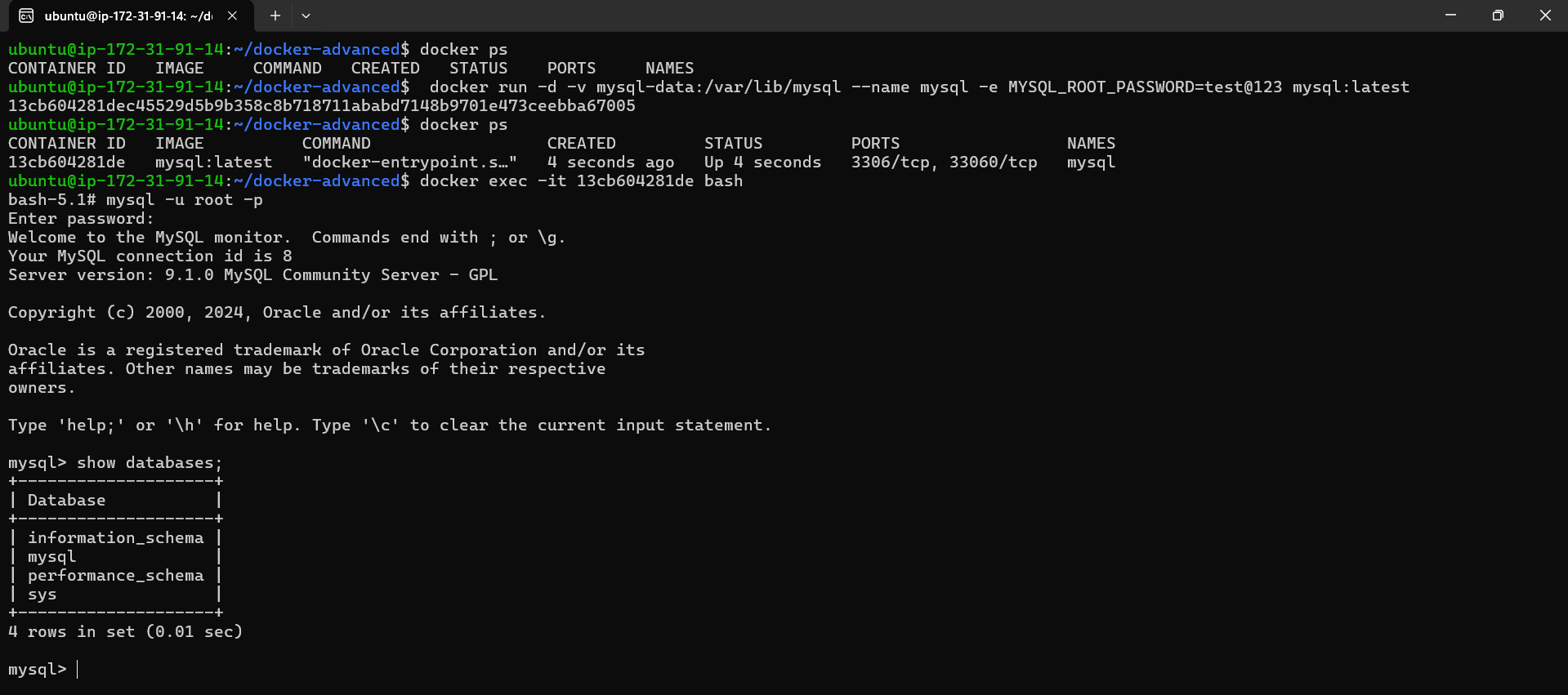
- Checked running containers with:
docker ps
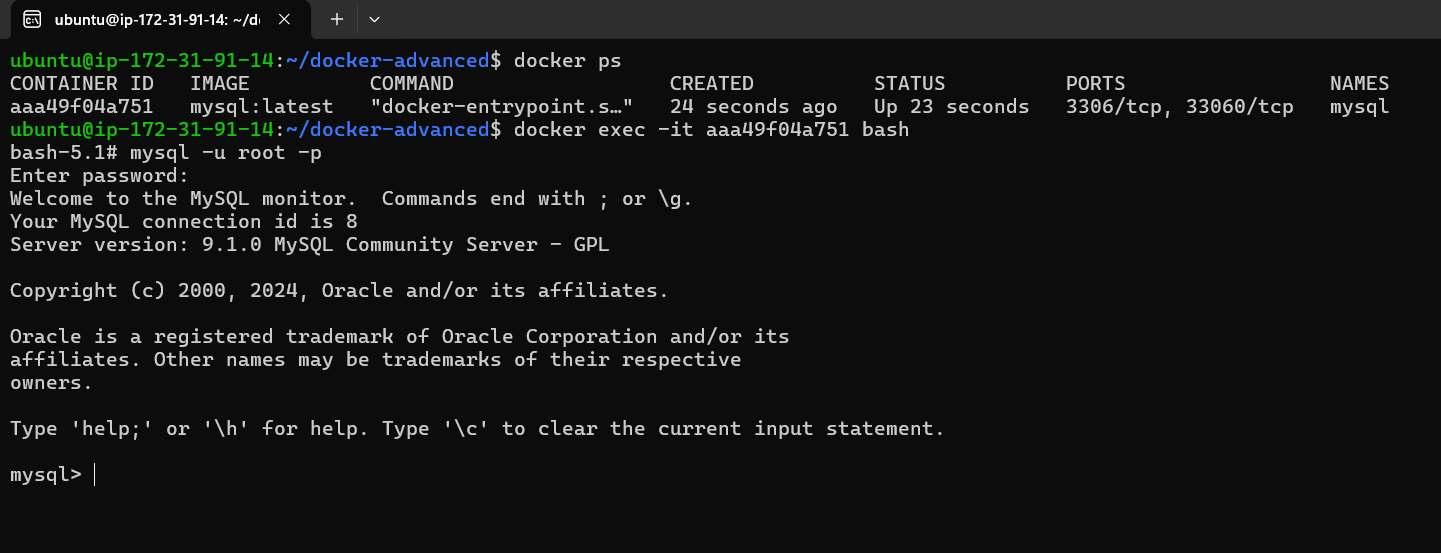
Accessing MySQL in the Container
- Accessed the container’s shell and launched MySQL in interactive mode:
    docker exec -it <container_id> bash
    mysql -u root -p
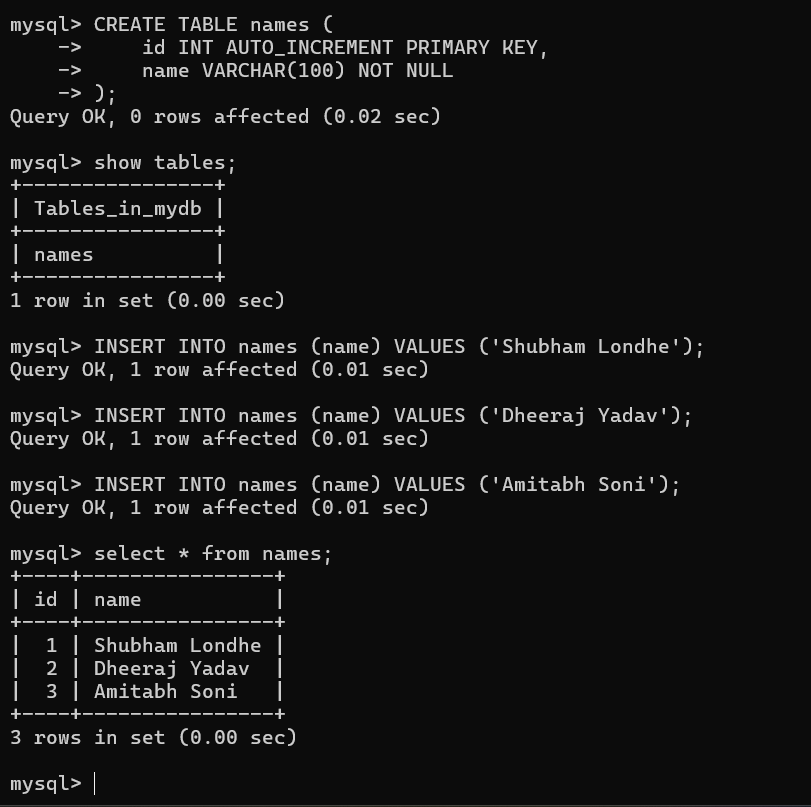
Creating a Database and Table in MySQL
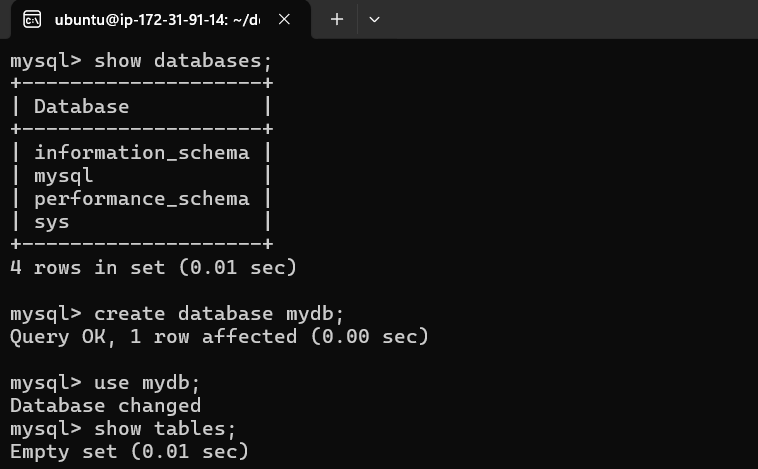
- Checked initial databases, created a new database
mydb, and added a tablenames:
- Checked initial databases, created a new database
    CREATE DATABASE mydb;
    USE mydb;
    CREATE TABLE names (id INT AUTO_INCREMENT PRIMARY KEY, name VARCHAR(100) NOT NULL);
    INSERT INTO names (name) VALUES ('Shubham Londhe'), ('Dheeraj Yadav'), ('Amitabh Soni');
    SELECT * FROM names;
Confirming Volume Data
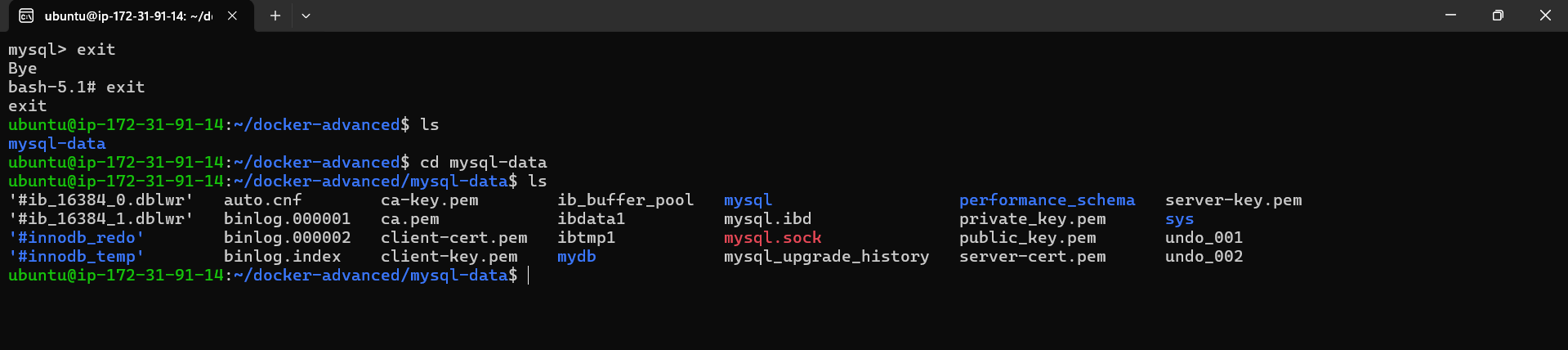
- After stopping the container, navigated to
mysql-dataand confirmed the database files:
- After stopping the container, navigated to
cd mysql-data
Restarting Container
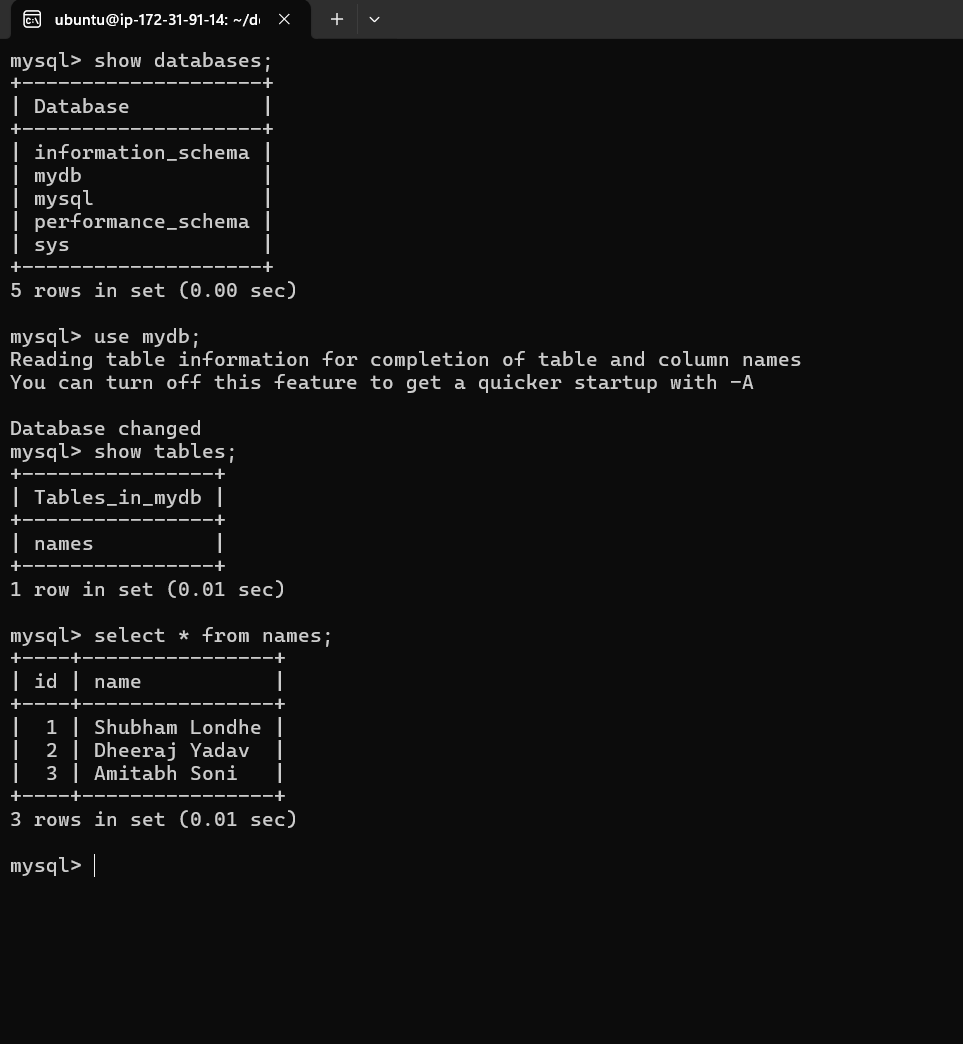
Restarted and verified the data:
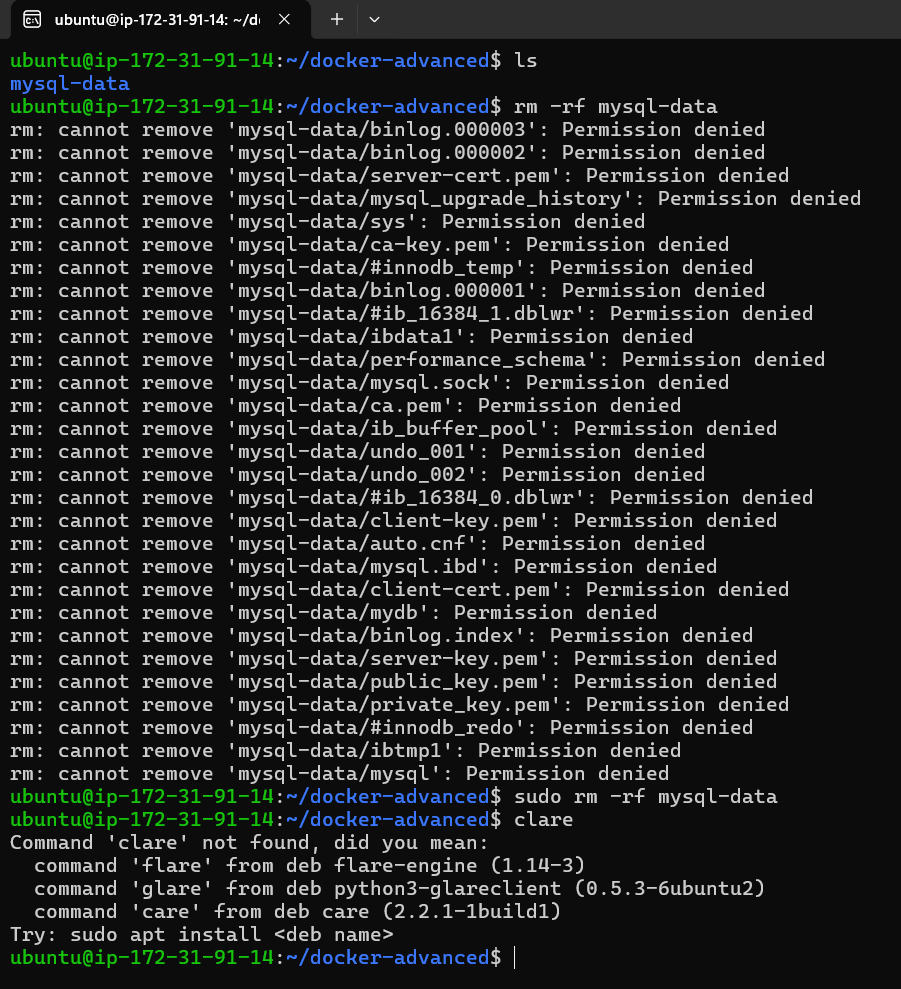
Deleting Volume
- Removed the volume with elevated permissions:
sudo rm -rf mysql-data
2️⃣ Creating a Volume Using the Docker Volume Command
Next, I explored creating a volume directly with Docker’s volume command.
Step-by-Step Implementation
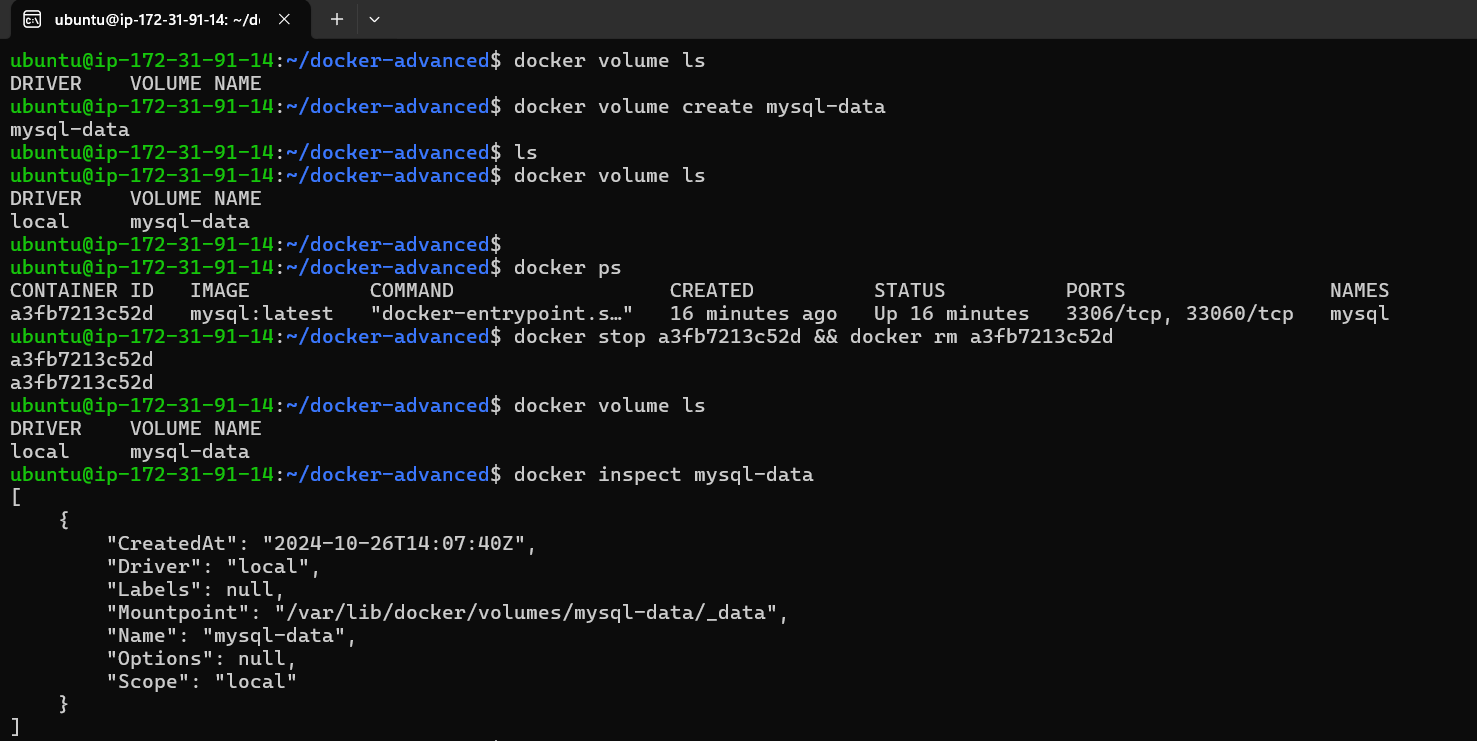
Checking and Creating a Volume
- Listed existing volumes, created
mysql-data, and inspected it for path details:
- Listed existing volumes, created
    docker volume ls
    docker volume create mysql-data
    docker volume inspect mysql-data
Running MySQL with the New Volume
- Mounted
mysql-datavolume for MySQL data persistence:
- Mounted
    docker run -d -v mysql-data:/var/lib/mysql --name mysql -e MYSQL_ROOT_PASSWORD=test@123 mysql:latest
    docker exec -it <container_id> bash
Creating Database and Table for Volume Test
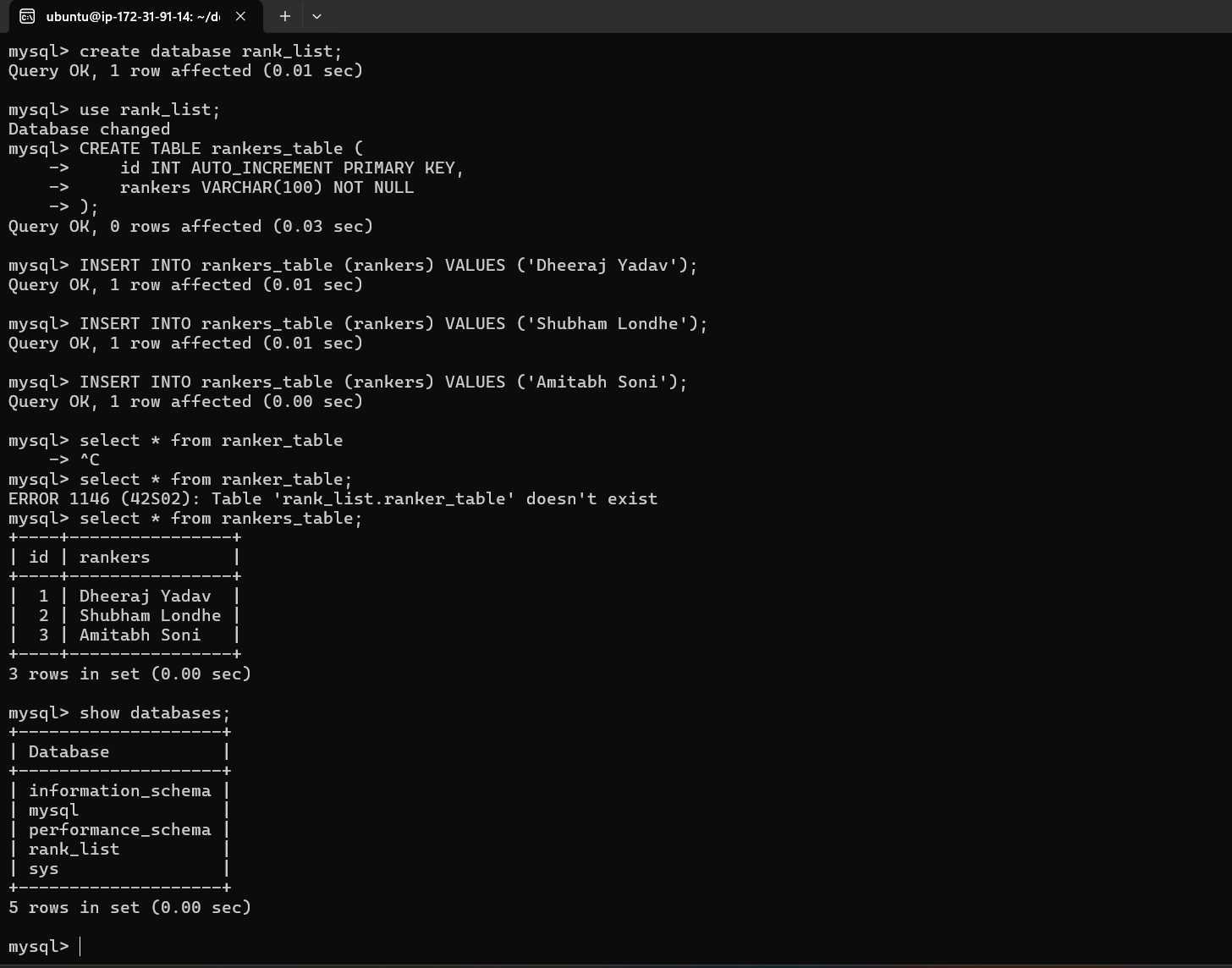
- Created
rank_listdatabase,rankers_table, and inserted data for testing:
- Created
    CREATE DATABASE rank_list;
    USE rank_list;
    CREATE TABLE rankers_table (id INT AUTO_INCREMENT PRIMARY KEY, rankers VARCHAR(100) NOT NULL);
    INSERT INTO rankers_table (rankers) VALUES ('Shubham Londhe'), ('Dheeraj Yadav'), ('Amitabh Soni');
    SELECT * FROM rankers_table;
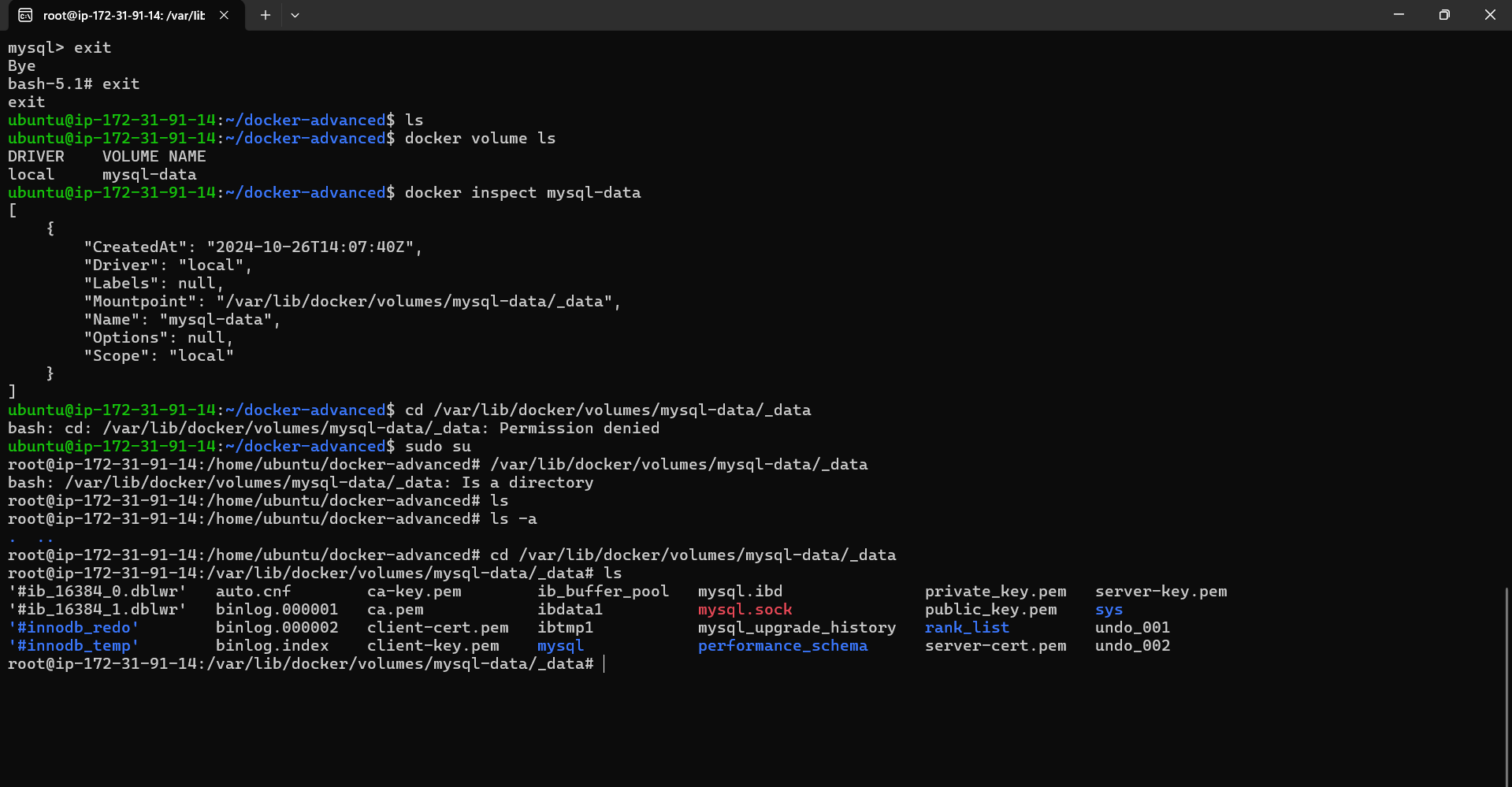
Verifying Volume Data
- Located
rank_listin the specified volume path:
- Located
    sudo su
    cd /var/lib/docker/volumes/mysql-data/_data
    ls
Restarting and Re-verifying Data
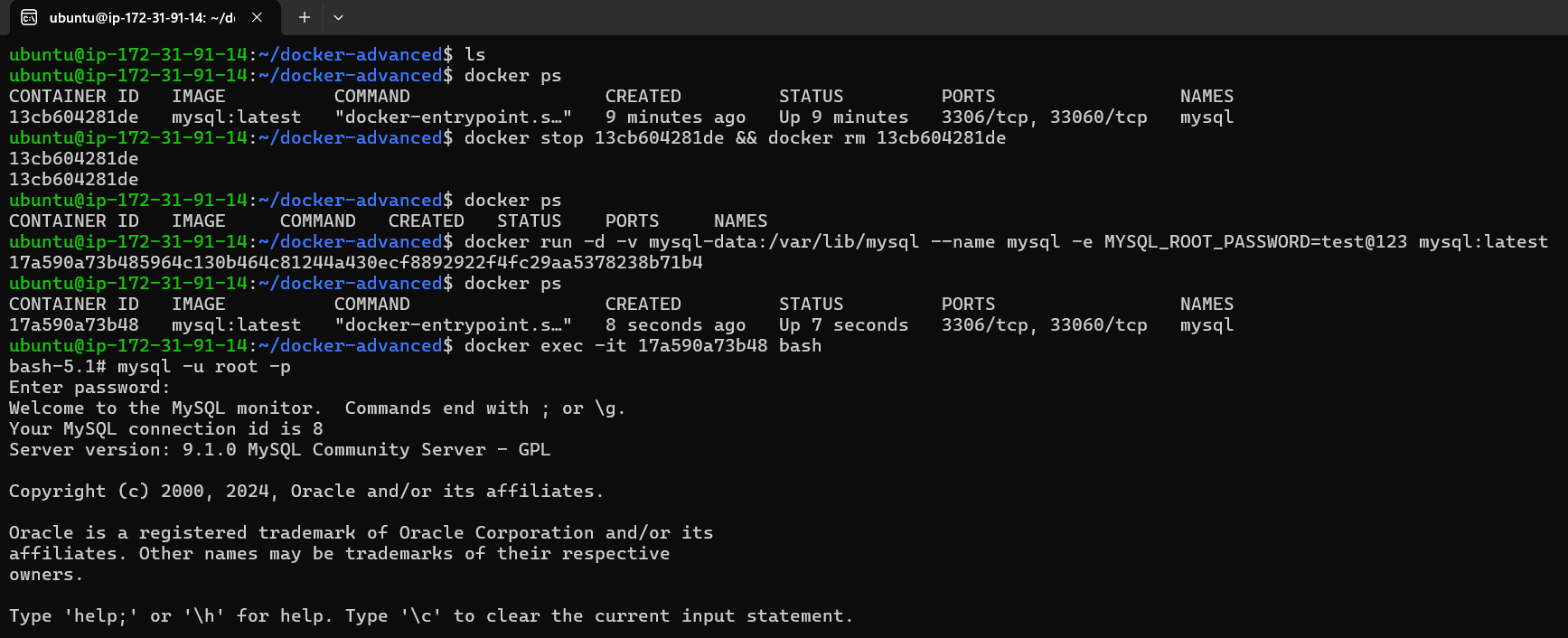
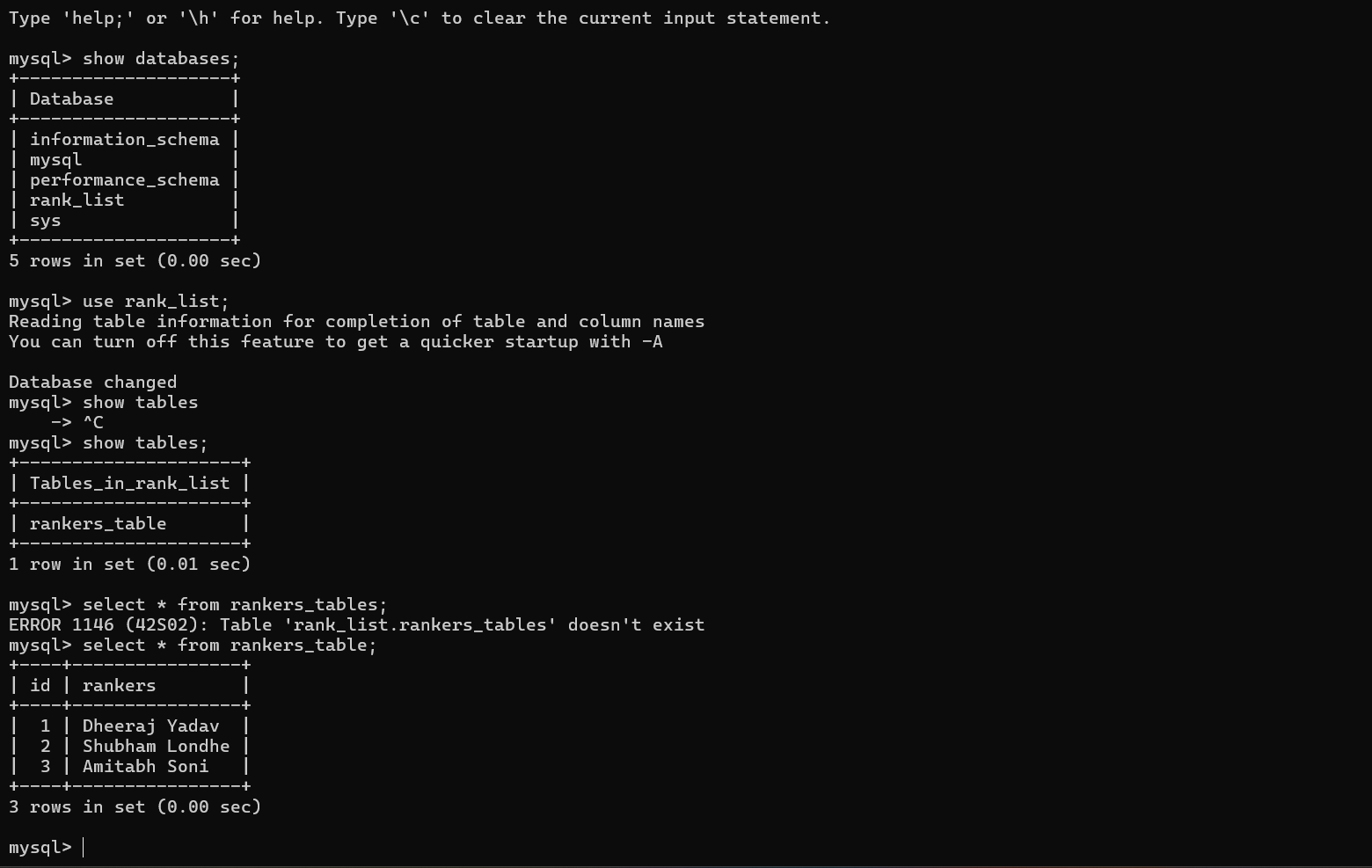
Stopped, removed, and re-ran the container to ensure data persistence.
Conclusion
Docker Volumes provide a powerful way to persist data between container sessions, crucial for applications like databases. Today’s hands-on with MySQL illustrated the concept effectively, showing how volumes help in creating durable data storage that remains intact across container stops and restarts.


