A Beginner's Guide to Shell Scripting in DevOps

Final-year BSc IT student and DevOps Engineer with strong hands-on experience in AWS and cloud-native technologies. I focus on building, deploying, and automating reliable systems using modern DevOps practices.
I have practical experience working with Docker and Kubernetes for containerization and orchestration, Terraform and Ansible for infrastructure automation, and CI/CD pipelines using Jenkins, GitHub Actions, and AWS CodePipeline. I enjoy solving real-world problems related to deployment, scalability, and system reliability.
Shell Scripting for DevOps - Automate Your Tasks
Lecture 8 in the DevOps journey dives deep into the essential topic of Shell Scripting. In this blog, we’ll cover what shell scripting is, its purpose, basic commands, script creation, automation using cron jobs, and more. Shell scripting is a crucial skill for DevOps engineers, as it allows for task automation and interaction with the OS kernel.
What is Shell Scripting?
Definition: Shell scripting is essentially a file containing a series of shell commands, which can be executed sequentially.
Purpose: It’s used to automate repetitive tasks, which is valuable in DevOps for saving time and reducing human error.
Shell: A shell is a command-line interface that interacts with the OS kernel. There are multiple types of shells, including
bash(Bourne Again Shell) andsh.File Extension: Shell script files typically have the
.shextension.Shebang:
#!/bin/bashis a shebang that specifies the script is for the bash shell.
Creating and Running Shell Scripts
To create a shell script, follow these steps:
Create Script: Use
vimhello.shto create a file.Make Executable: Use
chmod 774hello.shto make it executable.
# Example of a simple shell script
#!/bin/bash

# This is a comment
echo "Hello, World!"
Comments in Shell Scripts
Single-line Comment: Use
#at the start of the line.Multi-line Comment:
- Use the syntax
<<COMMENTandCOMMENTto enclose multiple lines.
- Use the syntax
    <<COMMENT
    This is a multi-line comment example.
    COMMENT
Assignment: Creating a Movie Dialog Script
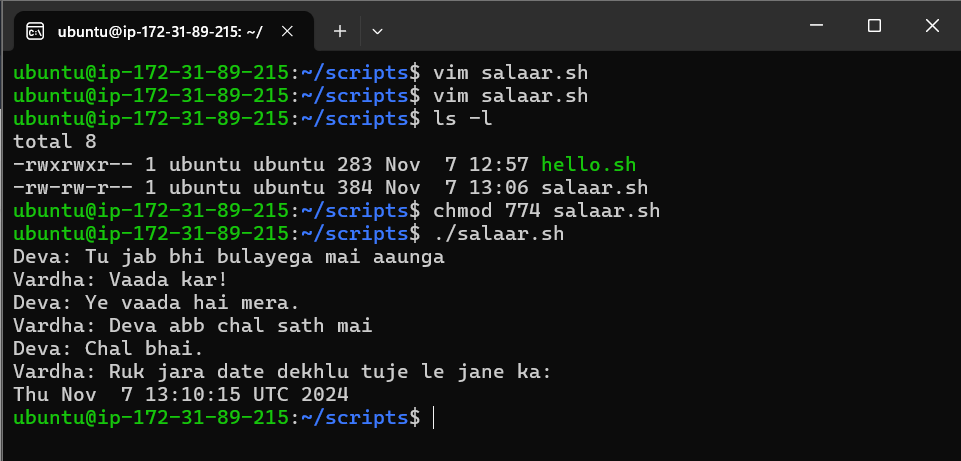
Here’s a simple script simulating a dialog from the movie Salaar:
#!/bin/bash

# This is Salaar movie dialogue

<<Salaar
Vardha and Deva ki dost
Salaar

echo "Deva: Tu jab bhi bulayega mai aaunga"
echo "Vardha: Vaada kar!"
echo "Deva: Ye vaada hai mera."
echo "Vardha: Deva abb chal sath mai"
echo "Deva: Chal bhai."
echo "Vardha: Ruk jara date dekhlu tuje le jane ka: "
date
Scripting Concepts
Variables and Constants
Print Output:
echois used to print anything.User Input:
readgathers input from the user, andread -padds a prompt.#!/bin/bash read -p "Enter your name: " name echo "My name is $name."
Installing Packages via Script
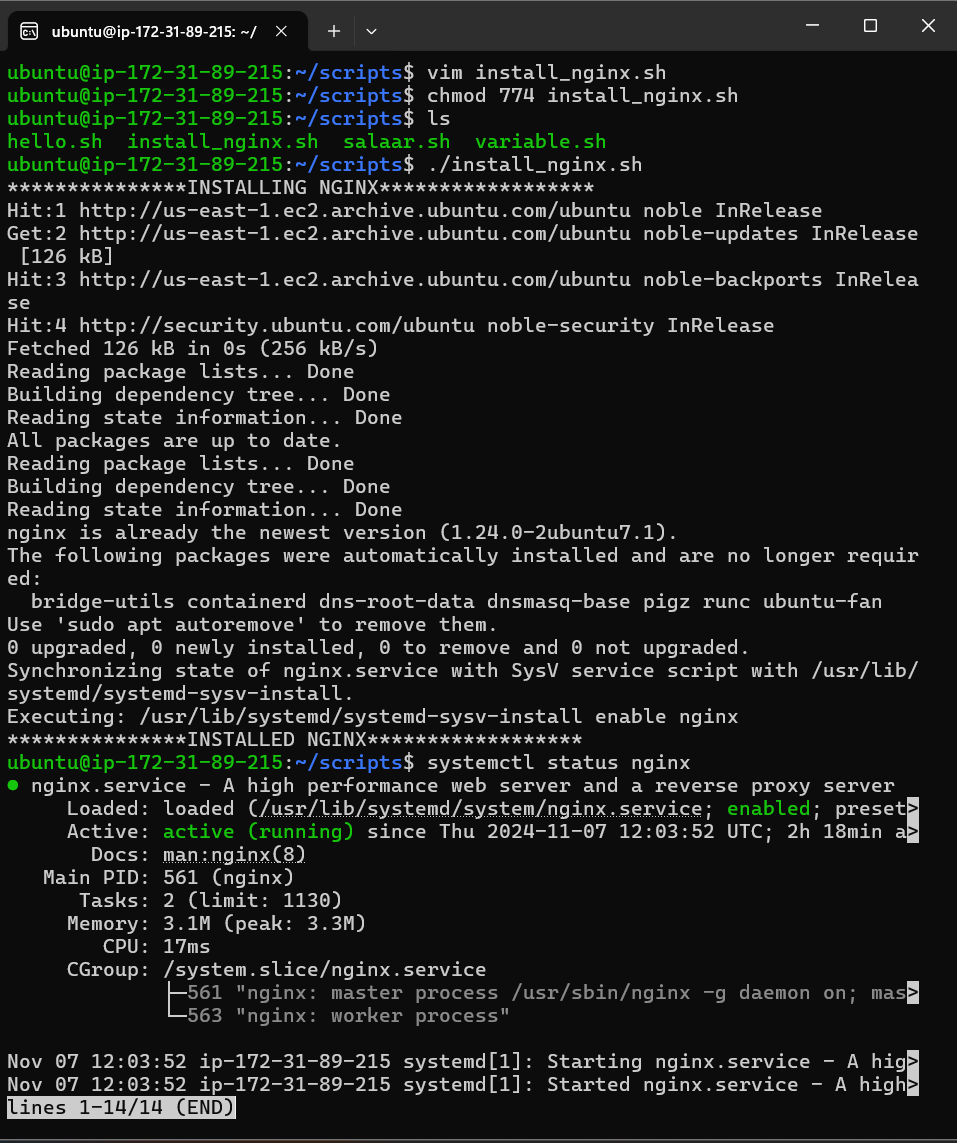
To automate package installation, here’s a script to install NGINX:
#!/bin/bash
echo "***************INSTALLING NGINX**************"
sudo apt update
sudo apt install nginx -y
sudo systemctl start nginx
sudo systemctl enable nginx
echo "**************INSTALLED NGINX******************"
Installing Packages Using a Script
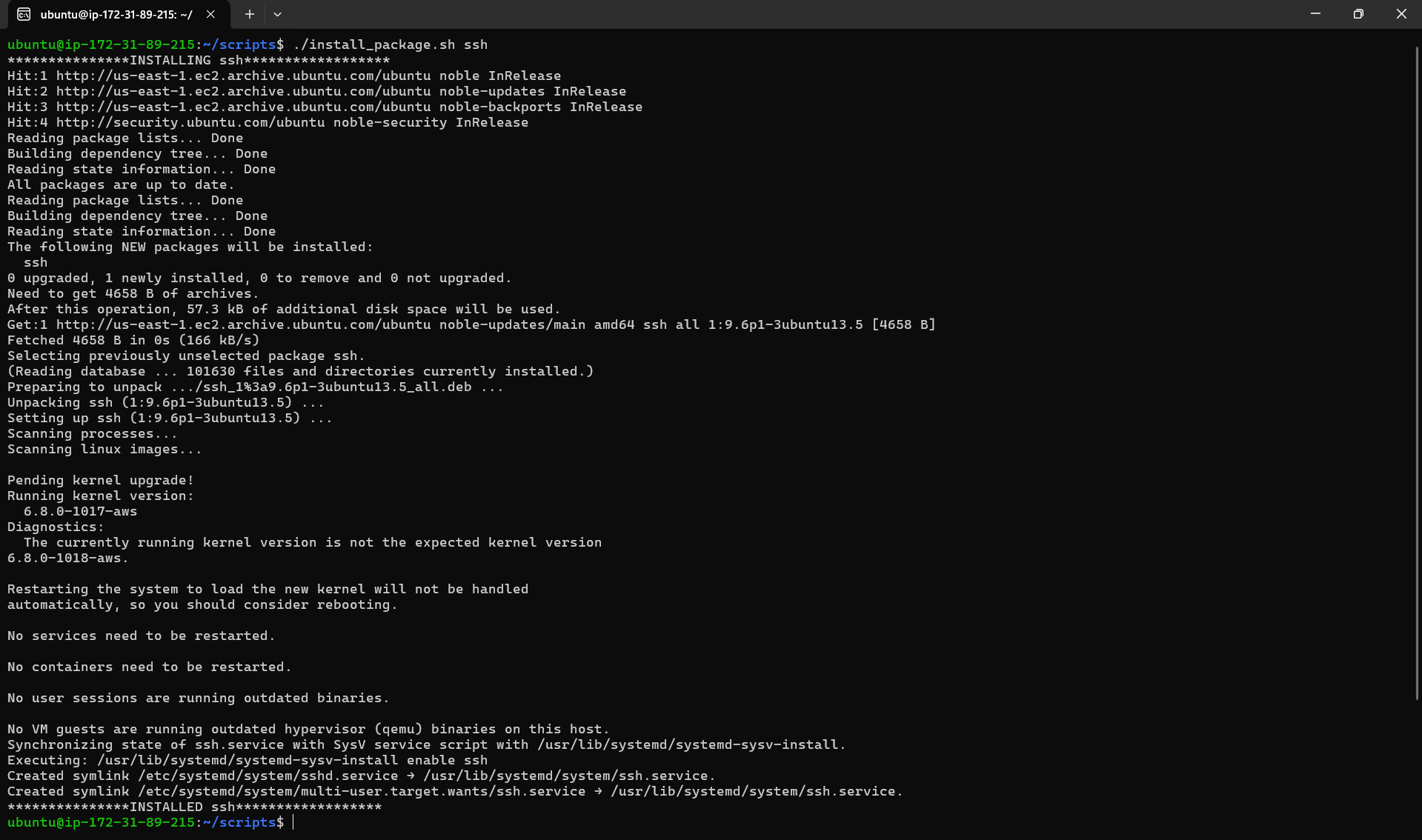
In this section, I learned how to create a script to install any package passed as an argument. Here's the shell script to install any package using a command-line argument:
Script: install_package.sh
#!/bin/bash

<< note
This script will install any package passed as an argument.

./install_package.sh <arg>

$1 is used to get the first argument (<arg>) which is passed by running the above command to install any package.
note

echo "**************INSTALLING $1**************"

# Updating system
sudo apt update

# Installing the package
sudo apt install $1 -y

# Start and enable the service
sudo systemctl start $1
sudo systemctl enable $1

echo "***************INSTALLED $1***************"
Steps to Execute:
Create the script using
vim install_package.sh.Change the file permissions:
chmod 774 install_package.sh.Run the script with the desired package as an argument. For example, to install SSH, run:
./install_package.shssh.
Output Image:
Creating a Backup of Scripts
A backup script example:
#!/bin/bash

<< note

This scripts takes backup of any destination path given in argument
./backup.sh /home/ubuntu/scripts

note

timestamp=$(date '+%Y-%m-%d_%H-%M-%S')

backup_dir="${timestamp}_backup.zip"

zip -r $backup_dir $1

echo "Backup Completed!"
Execute:
./backup.sh/home/ubuntu/scriptsResult: This compresses all scripts in
/home/ubuntu/scriptsinto a.zipfile with a timestamp.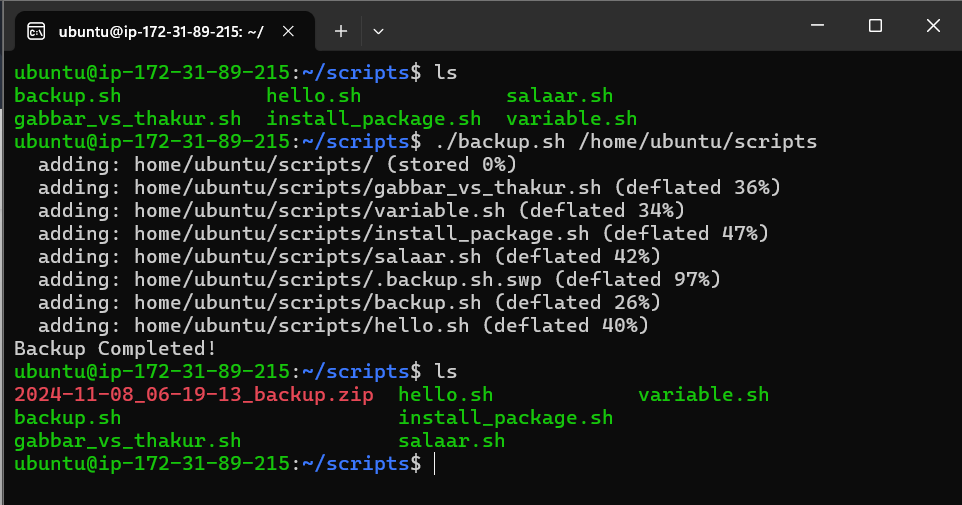
Automating Execution with Cron Jobs
Cron is a tool that automates tasks on a schedule.
Editing Cron Jobs: Use
crontab -eto access and edit the cron file.Schedule Example: The following runs a backup script every minute.
*/1 * * * * bash /home/ubuntu/scripts/backup.sh /home/ubuntu/scriptsUpdated
backup.shScript: This updated script stores backups in abackupsdirectory with a timestamp.#!/bin/bash << note This scripts takes backup of any destination path given in argument ./backup.sh /home/ubuntu/scripts note function create_backup { timestamp=$(date '+%Y-%m-%d_%H-%M-%S') backup_dir="/home/ubuntu/backups/${timestamp}_backup.zip" zip -r $backup_dir $1 echo "Backup Completed!" } create_backup $1To Stop Cron: Comment out or delete the scheduled job in
crontab.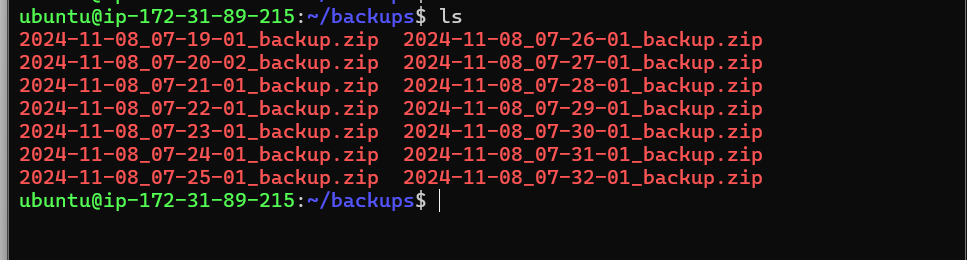
Conclusion and Next Steps
This blog covered foundational shell scripting concepts, from creating scripts to automating backups using cron jobs. Shell scripting is a powerful tool in DevOps that enables engineers to automate complex tasks efficiently. In the upcoming blog, we’ll explore Backup Rotation—a critical practice for managing space and organizing backups systematically.


